
How to Track Instagram, WhatsApp and Flyer Traffic with Short Links
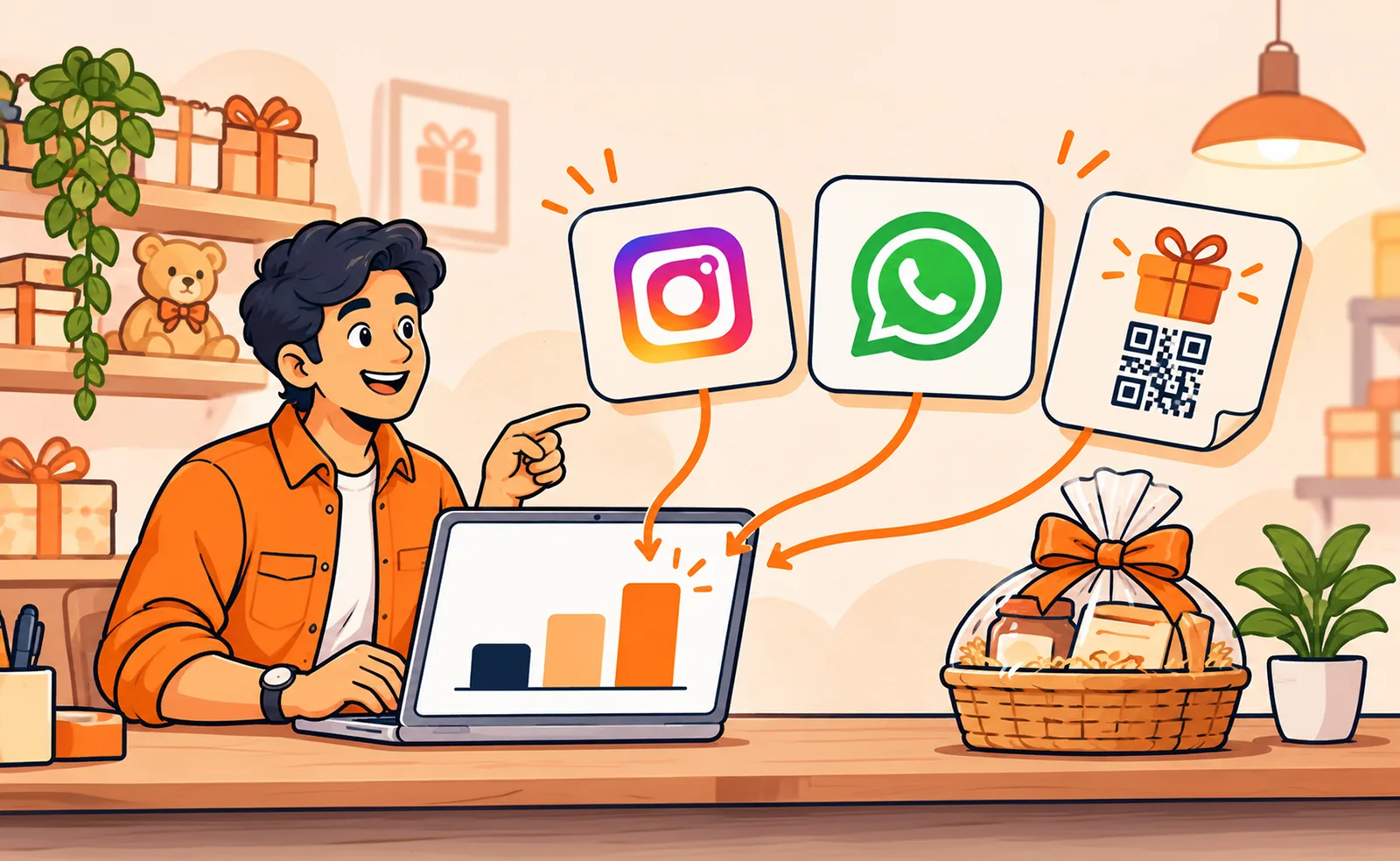
The flyers are gone, the WhatsApp message has been forwarded, and the Instagram bio link is still up. By Monday, you know people visited your offer page. You may have no idea which of those three placements sent them there.
The simplest fix is to give each placement its own short link. All three can open the same page. Each carries a different set of UTM tags, so you can tell which link brought people in.
Start with one offer and three links
Say you run a gift shop and want people to reserve a weekend hamper. You’re sending everyone to the same page, using https://example.com/weekend here as a sample. Use weekend_offer as the campaign name on all three links. Change the source and medium to describe where each version will go.
| Where you share it | Source | Medium | Campaign |
|---|---|---|---|
| Instagram bio | instagram | social | weekend_offer |
| WhatsApp broadcast | whatsapp | messaging | weekend_offer |
| Printed flyer QR code | flyer | print | weekend_offer |
Give the links plain names in your dashboard, such as Weekend offer · Instagram, Weekend offer · WhatsApp, and Weekend offer · Flyer. When you’re rushing to send the broadcast, those labels make it easier to grab the right one.
These tags describe the link you distributed. If someone forwards the WhatsApp link to a friend or posts it elsewhere, it will still carry the original WhatsApp tags.
Build the tagged URLs, then shorten them
- Open Linkly’s UTM campaign builder and paste your offer page URL.
- Enter the source, medium, and campaign from the first row. The builder shows the full tracking URL as you type. Keep the values lowercase so variations in spelling and capitalization don’t split your reporting.
- Select Shorten this URL and finish creating the short link. Save it under its placement name. Repeat for WhatsApp and the flyer.
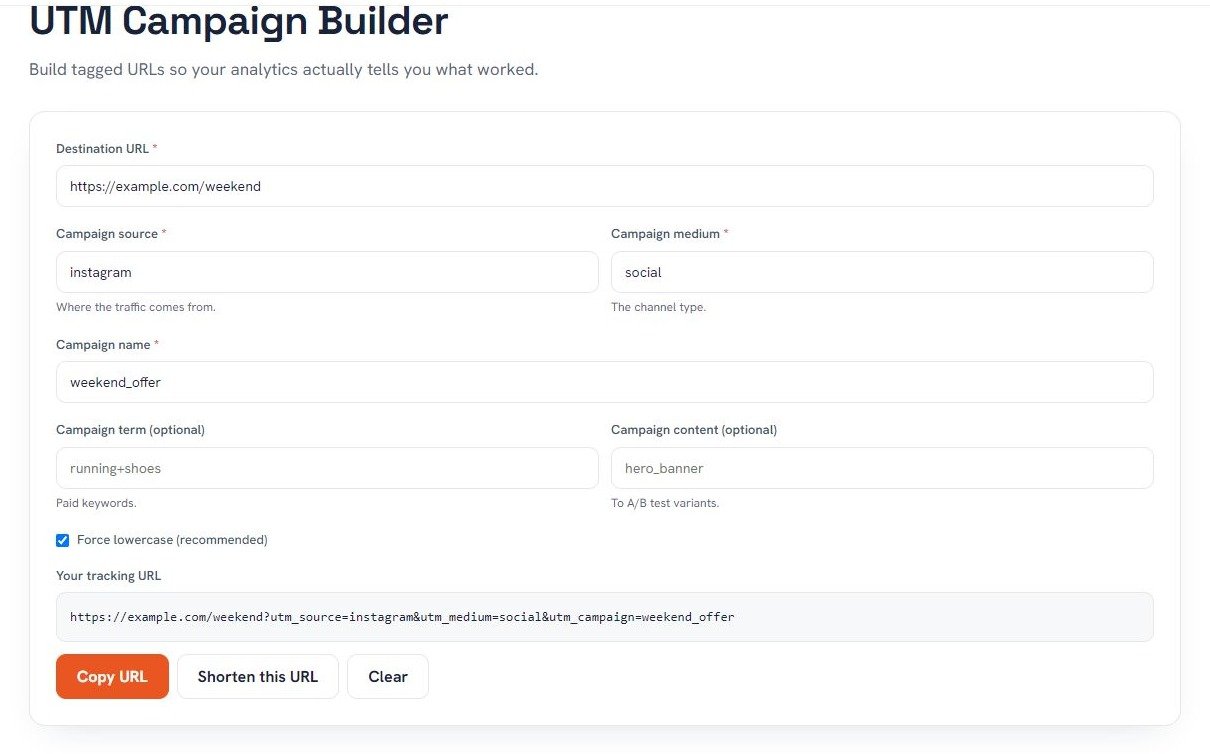
The short link is what you share. The UTM tags are part of the full destination URL. Open each short link on your phone before sharing and confirm it reaches the right page with the tags you intended.
Put the flyer version in a QR code
Use the flyer’s short link as the destination in the Linkly QR code generator. That gives the printed placement its own route into the same offer page. The screenshot uses the full tagged sample URL to show where the destination goes. For your campaign, use the corresponding short link.
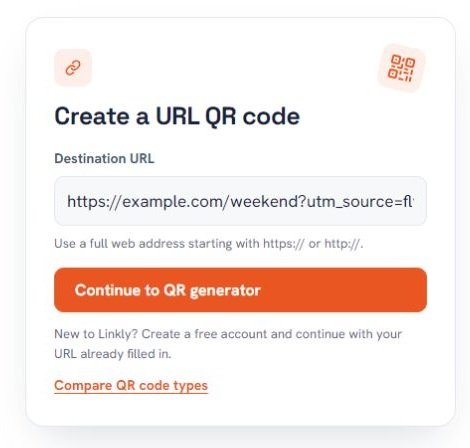
Print one proof at the size you intend to use. Scan it from the distance a customer would stand, then check that the page and tags are right. Put a short instruction beside the code, such as Scan to reserve your hamper. Printing the flyer’s short URL underneath gives people another way to open it.
Check what actually happened
Start with the clicks on each short link in Linkly. If the offer page is yours and it has GA4 set up, open the Traffic acquisition report for the campaign dates. Filter by Session campaign and compare Session source / medium. The GA4 campaign tagging guide explains how those parameters are collected.
Clicks tell you how often the link was opened. Sessions show measured visits to the website. If reservations or purchases are measured as key events, compare those too. A link that got fewer clicks may still have brought in more reservations.
If the offer page belongs to someone else and you can only see your Linkly dashboard, use the click counts you have. You’ll need reporting access or a separate way to track orders to know which link led to sales.
For the next offer, keep the same source and medium names and give the campaign a new name. When it’s time to decide whether to print another batch or send another broadcast, you’ll have three separate links to compare.